Record manual device checks
Work through display, touch, sound, button and exterior checks, with full-screen display and touch tools. Record your own verdict and save it to a case.

Offline iPhone log reader & device-check notebook
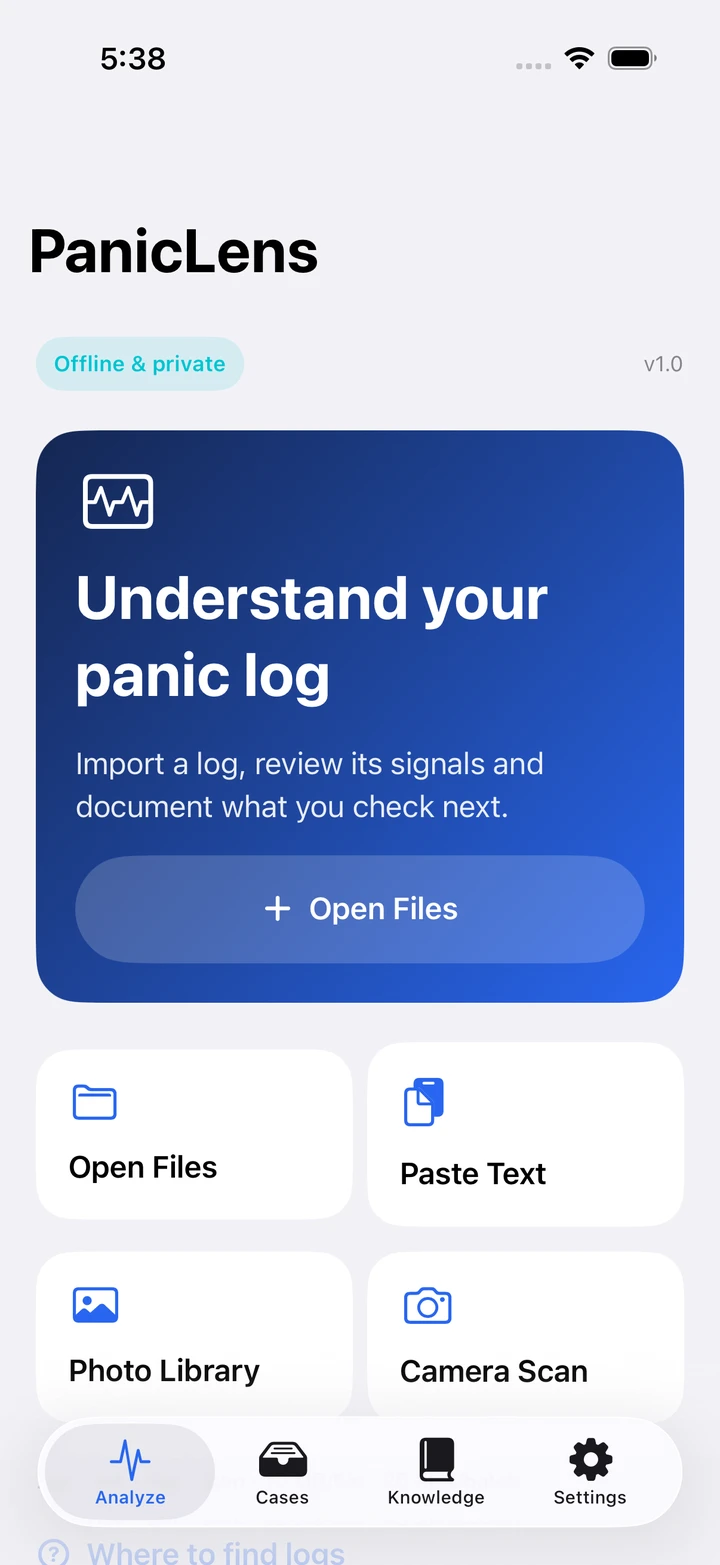
PanicLens helps you read selected iPhone panic logs offline, record manual device checks and keep related findings in local cases. Review the evidence and document what you check next.
Utilities · MiniSpark Apps
Utilities
Import files, paste text or use on-device OCR from a photo or camera. Review recognized text, confirm the source device and inspect the evidence behind observed terms.
Utilities
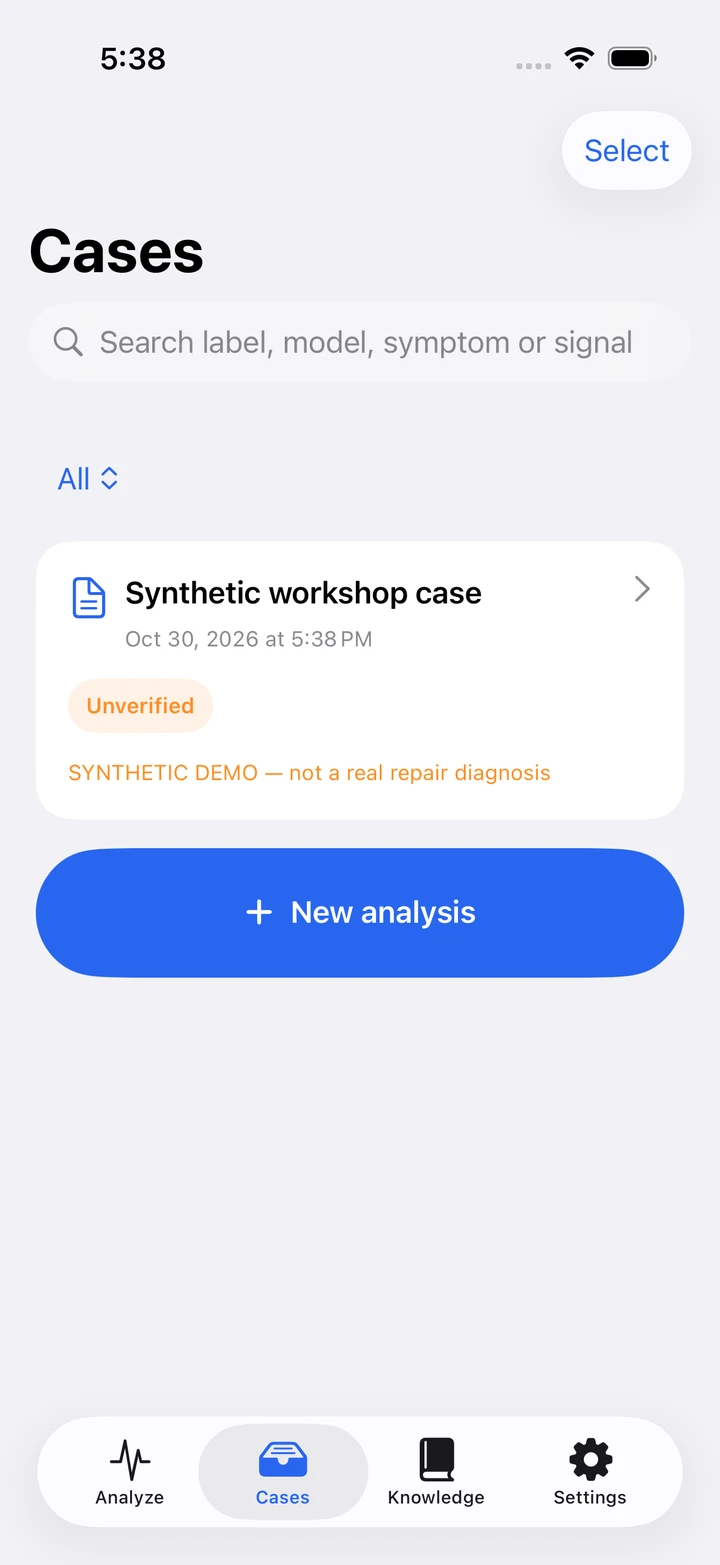
Organize related logs, saved findings, notes, retests, checklists and selected repair photos in local cases. Retain raw logs only when you choose.
Work through display, touch, sound, button and exterior checks, with full-screen display and touch tools. Record your own verdict and save it to a case.
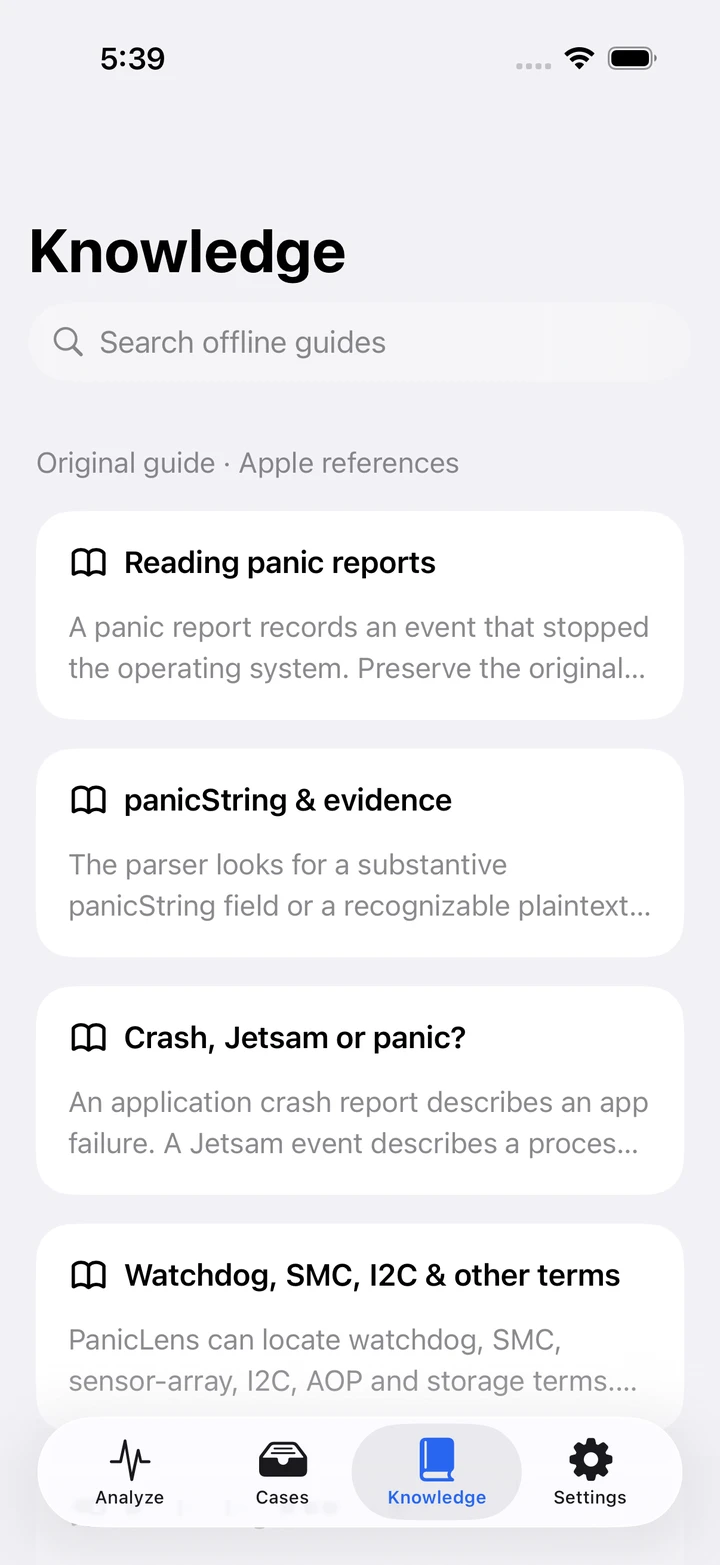
Browse bilingual explanations, codes and selected model-scoped community references. Limited coverage and conflicting references stay explicit; a log alone cannot confirm a failed part.
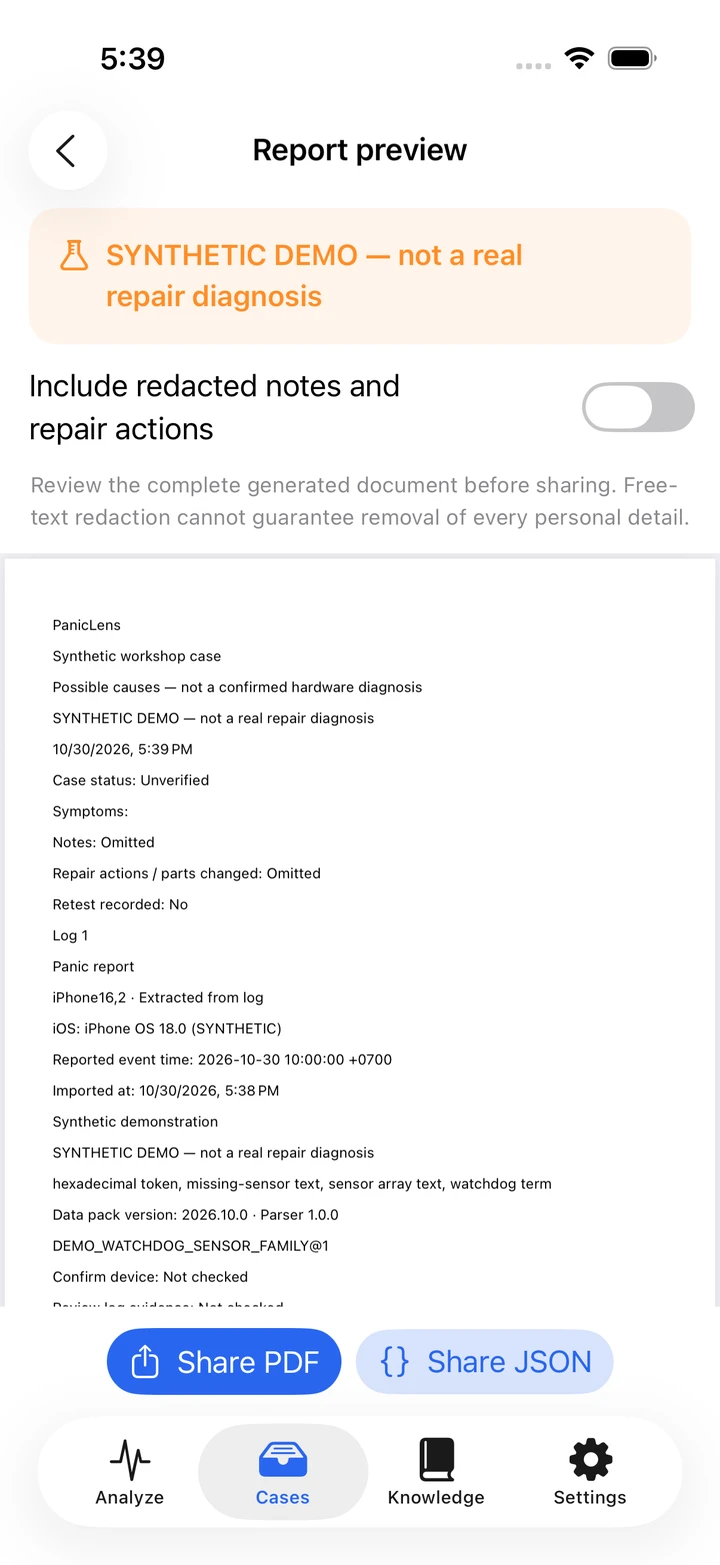
Create PDF or JSON report summaries with raw logs and photos omitted. Notes are optional, and redaction is best effort. Keep full manual backups separate and private.
No account, ads or automatic log uploads. OCR and analysis stay on device, with English and Vietnamese support. Your chosen providers handle cloud files and shared exports.
Your data, your choices
See how PanicLens handles information, permissions, and your choices.
Read the privacy policy ↗FAQ
On the device being investigated, open Settings → Privacy & Security → Analytics & Improvements → Analytics Data. Look for a panic-full report and use Share → Save to Files, then select it in PanicLens. Names and availability vary by iOS version. PanicLens does not automatically access the system Analytics Data folder.
Open .ips, .txt, .log or .json files, paste text, choose a photo or use the camera for on-device text recognition. Files are limited to 10 MB each and 20 per batch. Make cloud-provider files available locally first if access fails. Confirm the source-device context rather than assuming the log belongs to the phone running PanicLens.
OCR can confuse 0/O, 1/I/l, punctuation and codes. Review the recognized text against the original image before analysis; PanicLens does not automatically correct codes. A clear, complete image improves readability.
Guides, common questions, and a way to get in touch.